1. What AppSail is for
Picture this: your alternator dies in a harbour you don't know. You know nobody there, the yard is closed and home is a long way off. Until now, all you could do was walk the pontoons and ask.
AppSail does that for you. You post a request, and the phones of boaters within the radius you choose light up. Whoever has that part, or knows the job, simply writes to you.
It works the other way round too. If you're the one with a spare berth for a passage, or you can weld, others will find you.
The app is free.
2. What you need to start
- A phone running Android, or an iPhone
- Internet on the phone (mobile data or the marina wi-fi)
- Location (GPS) switched on — without it the app cannot tell who is near you
- An email address you can open
- To be 16 or older
Note: without internet the app does not work. Offshore, out of coverage, requests are neither sent nor received. AppSail is built for harbours, marinas and coastal waters.
3. Installing the app
On iPhone:
- Open the App Store (blue icon with an A).
- Tap Search at the bottom.
- Type: AppSail
- Tap Get, then confirm with your fingerprint, face or Apple password.
On Android:
- Open the Play Store (coloured triangle).
- Type at the top: AppSail
- Tap Install.
You can also go to appsail.eu and tap the store button there — it takes you straight to the right place.
4. Creating an account
The first time you open the app you'll see the welcome screen. There are three ways to create an account. Pick whichever suits you.
Option 1: email and password
- Tap Register.
- Fill in the fields marked with a star (*) — those are required:
- Username — this is how others will see you, for example
skipper_jack - First name
- Date of birth — tap the field and pick the date from the calendar
- Password — at least 6 characters
- Confirm password — must match
- Username — this is how others will see you, for example
- Under OPTIONAL you can add Last name, Phone number and
Crew code (optional). Got a code from your ship or crew, for example
CHOPIN? Enter it there — it tells us where you heard about AppSail. No code? Leave it empty. - Tap Create account.
The app then asks you to confirm your address. Check your inbox: a message from AppSail arrives with a link. Open it, come back to the app and sign in.
No message? Look in the Spam or Promotions folder. Mail from new senders sometimes lands there.
Option 2: Google account
Tap Continue with Google and choose your account. No new password to invent.
Option 3: Apple account (iPhone only)
Tap the black Continue with Apple button and confirm. Apple may offer to hide your real address — that's a safe choice, the mail still reaches you.
5. Completing your profile
If you signed up with Google or Apple, the app asks for a few more details, because those services don't pass them on:
- Username — at least 3 characters
- First name — if Apple or Google supplied it, the field won't appear
- Date of birth
- Crew code (optional) — the code from your ship or crew, if you have one
Tap Continue → and you're done.
6. Your skills and your listening radius
This is the last step of signing up — and one of the most useful.
Skills
You'll see a list with icons. Tick everything you know your way around:
| Icon | Skill |
|---|---|
| 🔧 | Mechanics |
| ⚡ | Electrics |
| 📡 | Electronics |
| 🪵 | Boatbuilding |
| 🪡 | Sailmaking |
| 🧭 | Navigation |
| 🔥 | Welding |
| 🧪 | Laminating |
| 🍳 | Cooking |
| 🤿 | Diving |
| 🔗 | Rigging |
Tap to select. Tap again to deselect.
You don't have to tick anything — you can tap Skip for now. It's worth doing though: it's how others know what you can help with.
The listening radius
Choose how far away you want to be notified about:
1 to 25 NM (1 · 2 · 5 · 10 · 20 · 25 NM).
NM stands for nautical mile, about 1.85 km. So 10 NM is roughly 18 km.
- Small radius (1–2 NM) — your harbour only. Quiet, few notifications.
- Medium (5–10 NM) — the local area. A good starting point.
- Large (20–25 NM) — the whole bay. More opportunities, more notifications.
You can change it any time in the Profile tab → Notifications → Listening radius. If you tap Skip for now, your radius is set to 25 NM.
When you're ready, tap Start sailing! ⛵ at the bottom of the screen.
7. The map — the main screen
Once you're signed in you see a map of the area with coloured markers — pins. Each pin is somebody's request.
Spread two fingers to zoom in, pinch to zoom out. One finger pans the map.
Pin colours and icons
The colour alone tells you what it's about:
| Pin | Colour | Type |
|---|---|---|
| 👷 | red | Expert assistance |
| 🔩 | orange | Spare parts |
| 🔧 | yellow | Tool needed |
| 👥 | green | Crew needed |
| ⛵ | blue | Hitch |
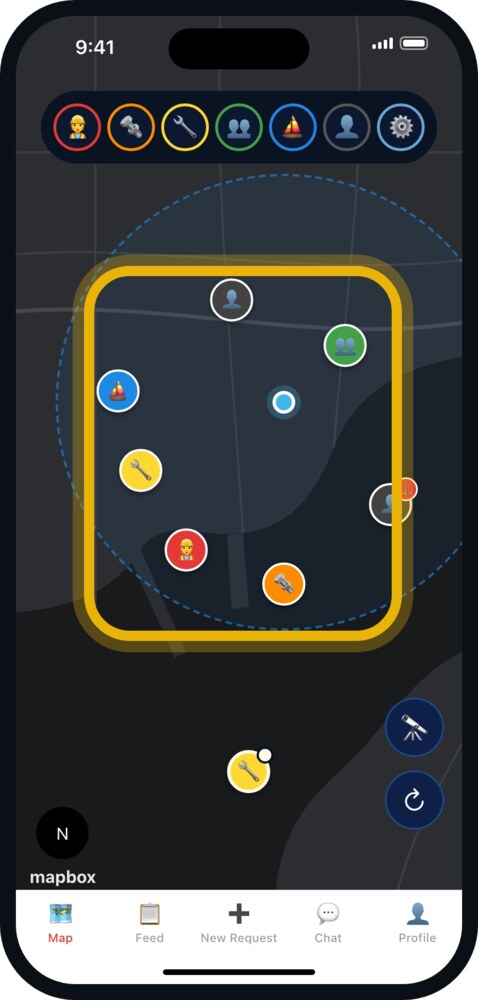
Grey circles are other sailors nearby — people, not requests.
Your own requests show on the map with a cream outline — always, whatever radius you set and whichever filters are on. That way you always have them in sight.
The exclamation mark on a pin
If a pin carries a small white badge with ❗, it means somebody needs exactly what you can do. The app has matched the request against the skills you ticked when you signed up.
Those are the ones worth opening first.
The filters along the top
At the very top there's a row of seven round buttons: the five request types, one with a silhouette 👤 for other sailors, and ⚙️ for map layers (see below).
Tapping one of the first six switches that type off — the button fades and those pins disappear from the map. Tap again to bring them back.
Handy when you're after something specific. Only want to see crew offers? Turn the other four off and just the green remains.
Everything is switched on to begin with.
Map layers — events, places and services (⚙️)
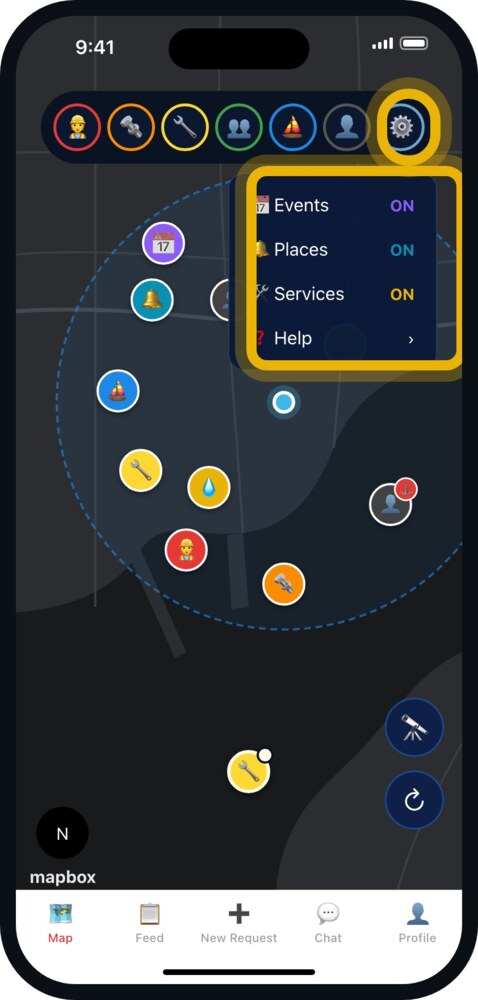
The last button, ⚙️, opens a small panel:
- 📅 Events — sailing events (chapter 18)
- 🔔 Places — great spots for sailors (chapter 20)
- 🛠️ Services — water, fuel, power and more (chapters 21–22)
- ❓ Help — opens this page
Tap a layer to switch it ON or OFF. All three are on to begin with. Tap ⚙️ again to close the panel.
What an opened request shows
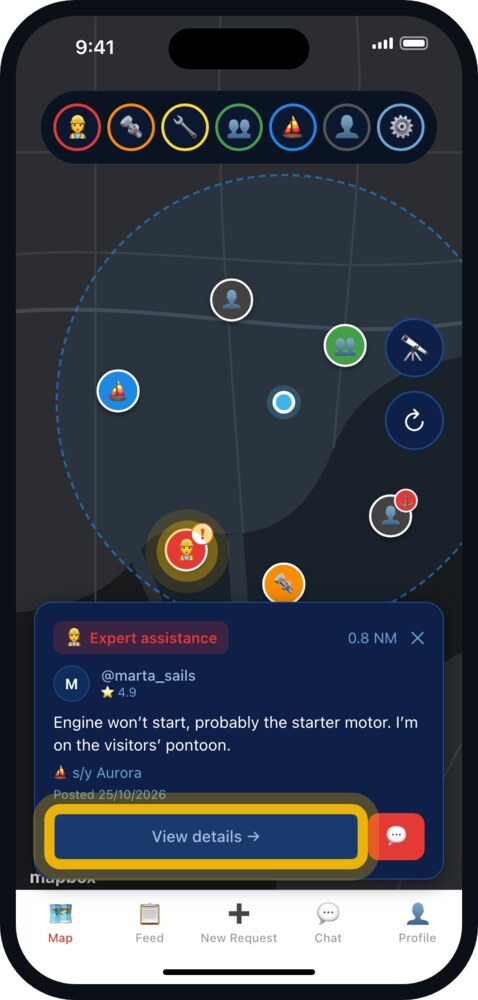
Tap a pin and a panel slides up from the bottom:
- the icon and name of the request type
- the distance from you in nautical miles, for example
3.4 NM - the username with an
@and their rating ⭐, if they have one - a photo, if the author added one
- the text of the request
- the boat's name ⛵ and the destination 📍, if given
- the date it was posted
- View details → — opens the full description
- 💬 — takes you to the conversation with the author
Close the panel with the ✕ in the top right corner.
The two buttons in the bottom right
Two round buttons, one above the other.
🔭 The spyglass — preview mode
Normally the map shows what's happening around you. The spyglass lets you look somewhere else without moving from where you are.
- Tap 🔭. The button lights up and a blue bar appears at the top: Preview mode — tap map to explore.
- Tap any point on the map. The app shows the requests and sailors as if you were there.
- You can keep tapping other places and carry on looking around.
- To come back to yourself, tap ✕ Exit on the blue bar, or tap 🔭 again.
What it's for: checking the harbour you're heading to. You can see whether anyone there is looking for crew, or whether there's someone who knows engines — before you slip your lines.
In preview mode your real position does not change. Nobody sees you at the place you're looking at. When you exit, the map returns to you.
↺ Refreshing the map
Reloads the map: takes your position from GPS and pulls in current requests.
Tap it when:
- you've just changed harbour and the map still shows the old one
- somebody mentioned a request you can't see
- the map looks frozen
The stale position warning
If a yellow bar appears at the top saying ⚠️ Last known position (2h ago), your phone hasn't managed to work out where you are and is showing the last place it remembers.
Tap Retry GPS. If that doesn't help, go up on deck — below decks and inside sheds, GPS often can't get a fix.
Inviting other sailors
When the map around you is empty, or after you close a request with ✓ Done, the app may suggest Invite a fellow sailor. Pick WhatsApp, SMS or Email to send a link to AppSail, or tap Maybe later. The more sailors nearby, the more useful the app is for everyone.
8. Posting a request
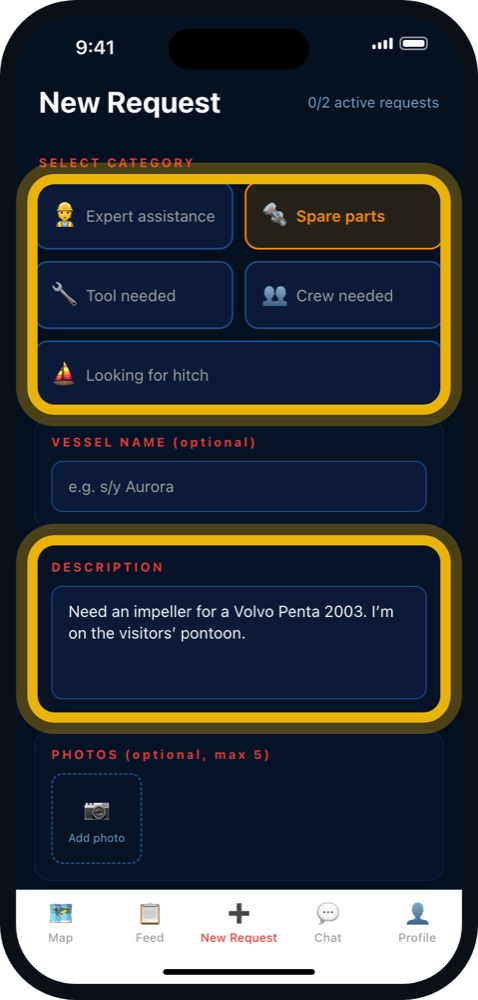
- Tap New Request (➕) at the bottom of the screen and choose Request (post your need).
- Under SELECT CATEGORY, choose the request type (see chapter 9). For Expert assistance, also pick the kind of expertise you need.
- For Crew needed and Looking for hitch, add the destination and, if you like, the voyage dates (departure and arrival).
- Vessel name (optional, not for Looking for hitch) — for example s/y Aurora. It shows on your request, so people in the harbour can find your boat.
- Write a description — this is required. The more specific, the better:
- ❌ "I need help"
- ✅ "Alternator dead on a Volvo Penta 2003, looking for someone to help me check it — I'm on the visitors' pontoon"
- Add photos if they help — up to 5.
- Set the broadcast radius — how far the request should reach: 1, 2, 5, 10, 20 or 25 NM (25 NM is selected to begin with).
- Set the request duration — 2h, 6h, 12h, 24h, 2 days or 7 days (24h to begin with). After that the request expires on its own.
- Tap Post.
The request is placed where you are — the app takes your position from GPS. From that moment, sailors within range get a notification.
9. The types of request
👷 Expert assistance — you need someone who knows the job: a mechanic, an electrician, a diver to check the prop.
🔩 Spare parts — you're after a specific item: an impeller, a shackle, a belt, a gasket.
🔧 Tool needed — you want to borrow something: a torque wrench, an angle grinder, a multimeter.
👥 Crew needed — you have berths free for a passage. Give the dates and the route.
⛵ Looking for hitch — you're looking for a berth on someone else's boat. Say where you want to go and when.
All five at a glance
This is how they appear in the app and in notifications:
| Icon | Type | When to choose it |
|---|---|---|
| 👷 | Expert assistance | You need someone who knows the job |
| 🔩 | Spare parts | You're after a specific part |
| 🔧 | Tool needed | You want to borrow something |
| 👥 | Crew needed | You have berths free |
| ⛵ | Looking for hitch | You're looking for a berth aboard |
The icon from this table also appears in the notification, so you'll know what it's about from the picture alone — before you even open it.
10. Range, duration and expiry
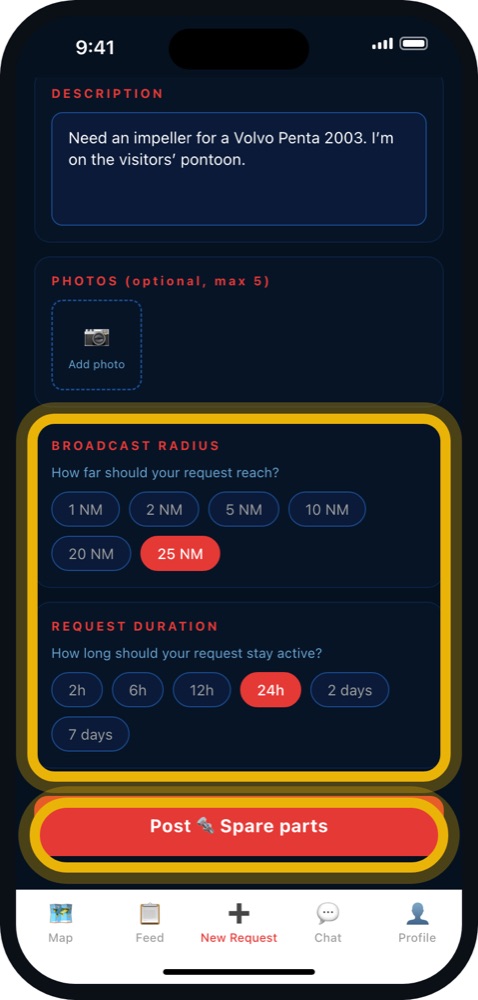
Range decides who sees the request. For a breakdown in harbour, 5 NM is plenty. For crew on a longer passage, go wider.
Duration — once the time you set runs out, the request disappears by itself. That way stale pleas don't pile up in the app.
Reactivation — an expired request can be switched back on if the matter is still live. Go to the Feed tab → My requests, open the request and tap ↺ Reactivate request, then choose 24h, 48h or 7 days.
If the matter is settled, close the request yourself: in Feed → My requests tap ✓ Done, or open the request and tap ✓ Mark as completed. It's good manners towards the people who would have helped.
11. How many requests at once
You can have 2 active requests at a time — or 3 if you're an ⚓ Active Sailor (see chapter 19). The New Request screen shows how many you have, for example 1/2 active requests.
If you've reached the limit, the app shows Limit reached — You can have max 2 active requests at a time (3 for an Active Sailor). To post another, close one of them first (Feed → My requests → ✓ Done).
12. Answering someone else's request
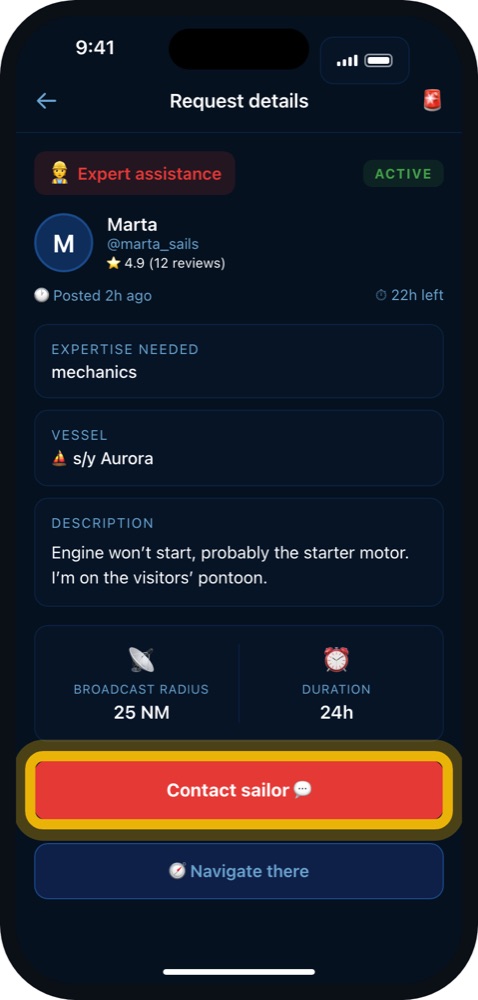
- Tap the request — a pin on the Map, or a card in the Feed tab (Nearby).
- Read the details: who, what, and how far from you.
- Tap Contact sailor 💬 (on the map: 💬, in the Feed: 💬 Contact).
- Say briefly what you can help with.
On the request details there's also 🧭 Navigate there — it opens your maps app with the route to the request.
You don't have to be a professional. Sometimes having the right spanner, or knowing somebody in the harbour, is enough.
13. Messages
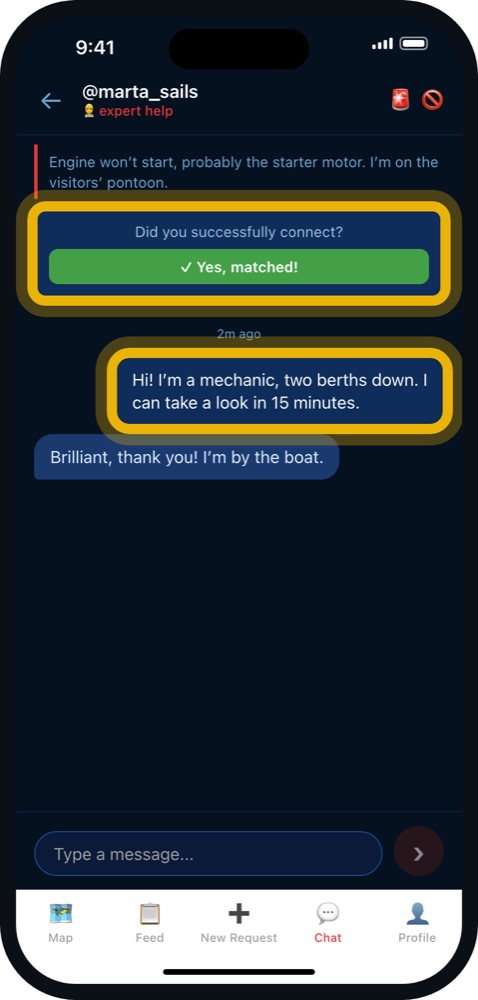
Your conversations live in the Chat tab (💬). It works like any ordinary chat: you type in the field at the bottom and tap send.
The conversation is private — only the two of you can see it.
Did you successfully connect?
Once you've exchanged messages, a bar at the top asks Did you successfully connect? If you've sorted it out, tap ✓ Yes, matched! — the conversation is saved.
After that you'll see ⭐ Rate this sailor. Give 1–5 stars, tick what stood out, add a short comment if you like (up to 200 characters) and tap Submit review ⭐. Ratings show as ⭐ next to the sailor's name — they help others decide whom to trust.
14. Notifications
A notification is a message that appears on your phone's screen, even when the app is closed.
You get one when a new request appears within your listening radius, and when somebody writes to you.
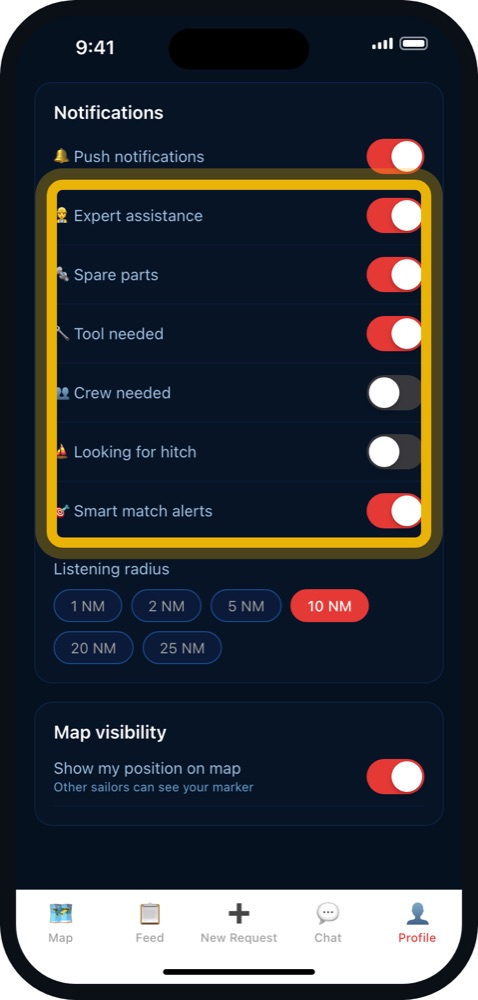
You choose what you get in the Profile tab → Notifications:
- 🔔 Push notifications — the main switch
- one switch per request type — 👷 Expert assistance, 🔩 Spare parts, 🔧 Tool needed, 👥 Crew needed, ⛵ Looking for hitch
- 🎯 Smart match alerts — a heads-up when another sailor's crew or hitch request is heading the same way as yours
- Listening radius — 1 to 25 NM
Too many notifications? Reduce your listening radius or switch off the types you don't need. Too few? Increase the radius.
If nothing arrives at all, check your phone's settings — see chapter 23.
15. Your profile
In the Profile tab you'll find:
- your photo — tap it to change it — your name, username, ⚓ Active Sailor badge and rating
- Personal info — tap Edit to change your name, username, phone and date of birth (your email can't be changed here)
- My Skills — tap Edit to change them and add your own
- Notifications and your listening radius (chapter 14)
- Map visibility — see below
- Rate AppSail — send us your feedback
- 🚫 Blocked users, Log out and Delete account (chapter 17)
- ❓ Help / Manual — opens this page
- the app version, right at the bottom
Your own requests, active and expired, are in the Feed tab → My requests.
Still called “Sailor”?
If your first name shows as Sailor (it can happen after signing in with Apple or Google), the Profile tab shows a short message just below your name. Tap Add name to enter a first name or nickname, or Keep ‘Sailor’ to hide the message for good. The first name can't be left empty.
Map visibility — your privacy
- Show my position on map — other sailors can see your marker. Switch it off and you don't appear on the map as a sailor.
- Show my info when tapped — your profile photo, first name and surname initial, username and rating are visible to others (Premium sailors also see your skills). Switch it off and people who tap your marker only see that you prefer to stay anonymous.
“Show my position on map” is on by default for a new account. While it is on, other signed-in sailors see your exact position for about 3 hours after you last used the app. Your position is saved only while you use the app — never in the background. To hide yourself, go to Profile → Map visibility and switch it off. More in the privacy policy (section 5.1).
Your requests are always shown to sailors within range — that's how they reach people.
16. Safety — reporting and blocking
The sailing community is decent, but there are exceptions.
Report — if someone behaves badly, tries to get money out of you, or writes things they shouldn't, report them: in the conversation tap 🚨 at the top, pick a reason and tap Submit report. A request can be reported the same way from its details. Reports come to us and we look at every one.
Block — in the conversation tap 🚫. A blocked user can no longer contact you. The list is in the Profile tab → 🚫 Blocked users, where you can also Unblock someone.
Common sense:
- Don't pay up front for parts you haven't seen.
- Arrange the first meeting in the harbour, not somewhere out of the way.
- Never give out your card number or login details. Nobody from AppSail will ever ask for them.
17. Settings and your account
AppSail has no separate settings screen — everything is in the Profile tab:
- your listening radius and notifications — chapter 14
- Map visibility — chapter 15
- your skills — My Skills → Edit
- your list of blocked users
At the bottom you'll also find Log out and, under Danger zone, Delete account — you confirm it by typing DELETE.
Your password
There's no "change password" option inside the app. To set a new password, log out, enter your email on the sign-in screen and tap Forgot password?. A message arrives with a link to set a new one.
If you signed in with Google or Apple, you don't have a separate AppSail password — your Google or Apple account takes care of it.
Deleting your account cannot be undone: requests, conversations, photos and profile all go. If you only want a break from the notifications, reduce your listening radius or switch off 🔔 Push notifications in the Profile tab.
18. Sailing events on the map
Besides sailors' requests, AppSail also shows sailing events near you — regattas, boat shows, festivals, picnics, season openings and closings.
You'll spot events by the purple pin with a calendar icon 📅 — a different colour from sailors' requests:
| Pin | Colour | What it is |
|---|---|---|
| 📅 | purple | Sailing event |
You can see events in two places:
- On the map — as purple pins 📅. Tap a pin to see the details: name, type, dates and location.
- In the Feed tab — at the top, in a separate "📅 Events nearby" section.
Tap an event to see its details. If the organiser provided a website, you'll get a button that opens it. There's also a navigation button that takes you straight to the location.
Events appear ahead of time and disappear from the map once they're over — so you only see what's still coming. They're filtered by the same radius as requests: we show events within the range you set yourself.
Don't want to see events on the map? Switch them off with ⚙️ → 📅 Events (chapter 7).
Know an event that isn't on the map? Report it at appsail.eu in the "Report event" section — or in the app tap New Request (➕) → Event (organiser? add yours), which opens the same form. We'll add it so sailors nearby can see it.
19. Active Sailor — a reward for showing up
AppSail works best when there are many of us and we're active. That's why sailors who check in regularly get the ⚓ Active Sailor status.
To earn it, just open AppSail and refresh the map every now and then — you don't have to do anything else. If you've been opening the app at least once every few days over the past month, the status switches on by itself.
What Active Sailor gives you:
- A badge ⚓ on your profile and on your requests — other sailors can see you're an active member of the community. Your badge also shows on the map, at your position.
- One extra request — instead of two active requests you can have three at once.
If you stop checking in for a longer while, the status expires — but it comes back once you start refreshing the map regularly again. It's not about sitting in the app all the time. It's about keeping the harbour full — so there's always someone nearby who can help.
20. Great spots for sailors
Besides requests and events, AppSail also shows great spots near you — bars and taverns, restaurants, maritime museums, viewpoints, landmarks, beaches, sailing shops, equipment rentals and dive spots.
You'll spot places by the teal pin with a bell 🔔 — a different colour from requests and events:
| Pin | Colour | What it is |
|---|---|---|
| 🔔 | teal | Great spot |
You can see places in two ways:
- On the map — as teal pins 🔔. Tap a pin to see the details: type, name and location.
- In the Feed tab — in a separate "🔔 Places nearby" section.
You can hide them with ⚙️ → 🔔 Places (chapter 7).
Tap a place to see its details, a photo, and if a website was provided, a button opens it. There's also a navigation button that takes you straight there.
21. Services — water, fuel, power and more
This is the heart of what we're building together. Alongside great spots, AppSail shows services — the practical things you look for when you're underway:
| Pin | What it is |
|---|---|
| 💧 | Water |
| ⛽ | Fuel |
| 🔌 | Power |
| 🛂 | Border clearance |
| 🧺 | Laundry |
| 🚻 | Toilets / showers |
| 🏗️ | Crane / slip (launching and hauling out) |
| 🚣 | Dinghy dock |
| 🗑️ | Waste disposal |
| ⤵️ | Pump-out |
| ♨️ | Gas / LPG |
Services are amber — a different colour from the teal spots and purple events. They show as amber pins on the map, and in a separate "🛠️ Services nearby" section in the Feed tab. You can hide them with ⚙️ → 🛠️ Services (chapter 7).
Why does this matter? In a marina everything is obvious — water, power and fuel are right there. But in the less obvious places — a wild jetty, a fishing harbour, a small port with no staff — knowing where to fill up on water or find a power socket is priceless. That knowledge isn't on any official chart. It's in the heads of the sailors who have been there.
And that's the whole idea: together we're building our own pilot book. A chart you can't buy — because it grows from the experience of people on the water. Every service you add is a point that will help someone else when they end up somewhere unfamiliar with no one around to ask.
22. Adding a place or a service
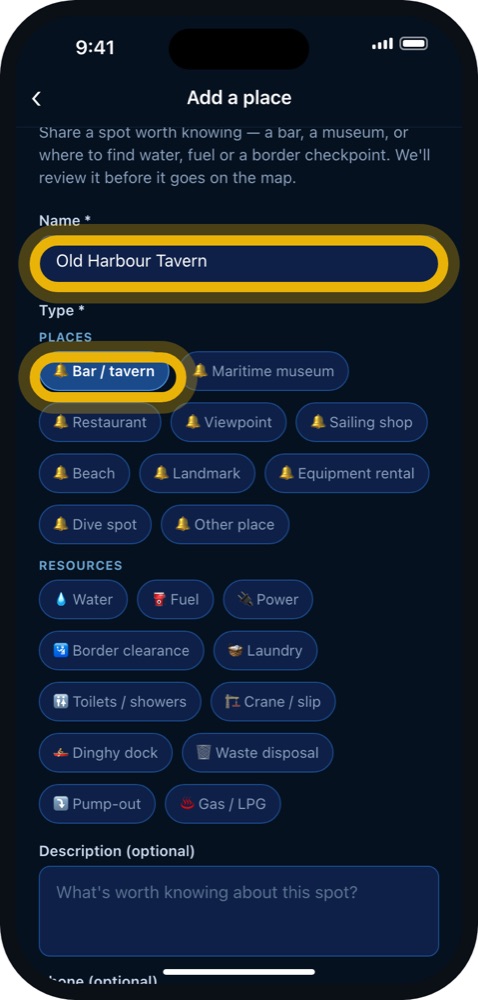
Want to add something to the shared map? Tap New Request (➕) at the bottom of the screen. You'll get a choice:
- Request (post your need) — when you need something (see chapter 8).
- Place (share a spot) — when you want to share a great spot or a service.
- Event (organiser? add yours) — if you're organising a regatta or a rally (opens the website to submit it).
After choosing "Place", fill in a short form:
- Name (required)
- Type (required) — a great spot (chapter 20) or one of the 11 services (chapter 21): water, fuel, power, border clearance, laundry, toilets / showers, crane / slip, dinghy dock, waste disposal, pump-out, gas / LPG
- Description, Phone and a Photo — optional
Then tap Submit place. The app takes the position from your GPS — so you add it exactly where you are. This matters: the point lands in the right spot, not "roughly there".
Your submission comes to us for review and, once approved, appears on the map for other sailors. We don't publish instantly — so the map stays reliable and free of errors. You can have up to 5 places waiting for review at a time.
Poor signal in a remote spot? Note the coordinates (the app shows them when there's no connection) and add the place later, once you're back in range — through the app or at appsail.eu.
23. When something doesn't work
I can't see any requests
Most likely there's nobody nearby — that's normal in quieter harbours. Check
too that the app has access to your location and that you have internet.
I'm not getting notifications
- iPhone: Settings → AppSail → Notifications → turn on Allow Notifications
- Android: Settings → Apps → AppSail → Notifications → turn on
- Check that Do Not Disturb isn't switched on
- In the app: Profile → Notifications — check that 🔔 Push notifications and the request types you want are on
- Increase your listening radius
The sign-up email never arrived
Look in your spam folder. If you try to sign in before confirming, the app offers
Send again.
I've forgotten my password
On the sign-in screen, enter your email and tap Forgot password?. A message
arrives with a link to set a new one.
The app keeps freezing
Close it completely and open it again. If that doesn't help, check the store
for an update.
None of this helps
Write to support@appsail.eu. Give the model of your phone and describe what
you tapped and what happened. A screenshot helps enormously.
24. One last thing
AppSail does not replace the rescue services.
If life, health or the vessel is at risk, call for help the way you always have: VHF channel 16, 112, or your national maritime rescue coordination centre.
AppSail is for the everyday — a breakdown, a missing part, a free berth, a hand with the rigging. For what used to mean walking the pontoons and asking.
Fair winds.
appsail.eu · support@appsail.eu